
How to Use Remove Background Feature?
The Remove Background feature in our app allows you to instantly transform your product images into professional, studio-quality images. By using advanced AI to isolate your product and strip away the background, replacing it with a clean white background, you can create a uniform and professional look across your entire catalog in just a few clicks
Note: Using the AI background removal feature requires 2 image edit credits per image.
Example:

Step-by-step guide:
-
Open the Remove Background tool in the app's dashboard or by selecting it in the side bar.
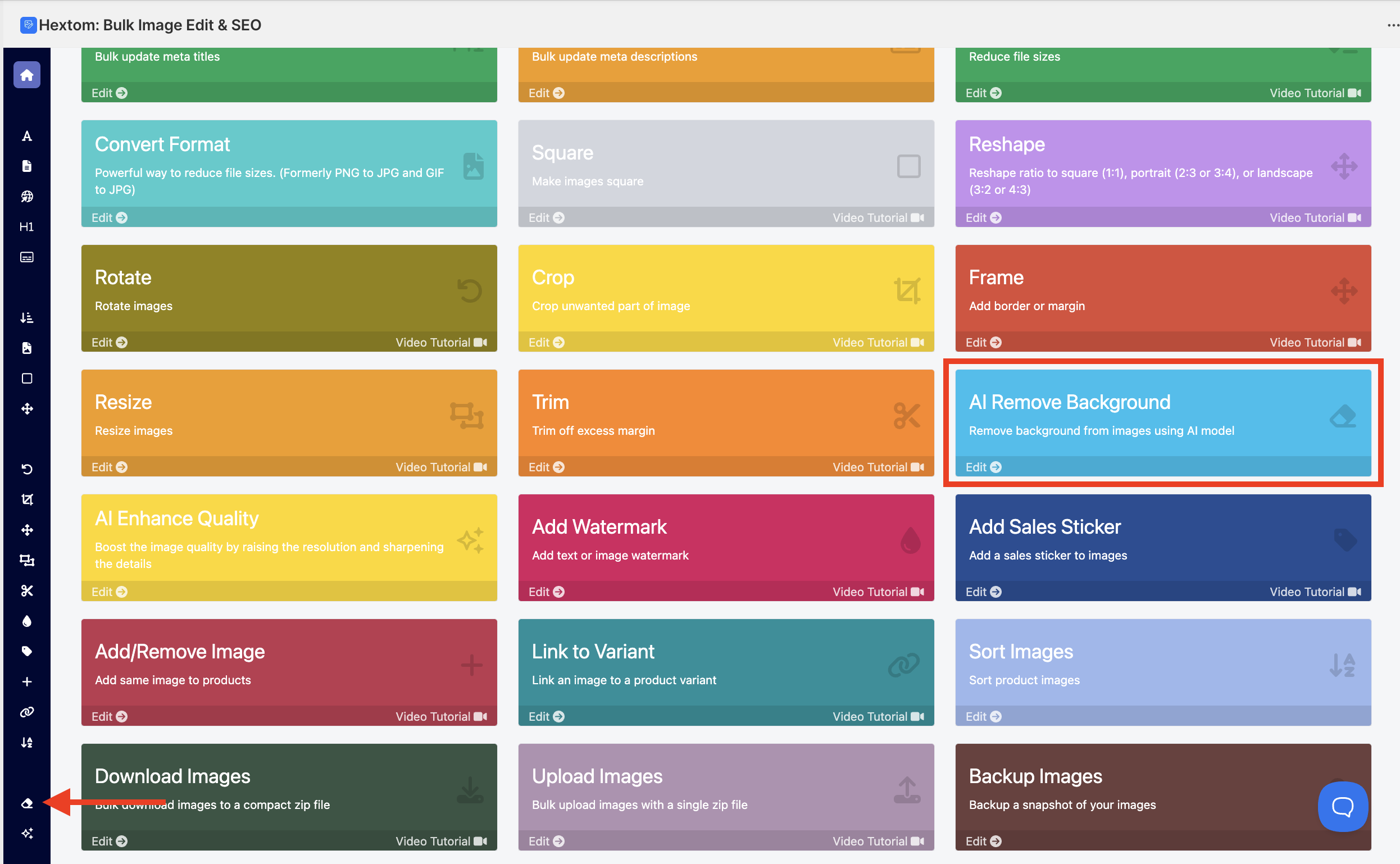
-
Select which image type you want to edit.
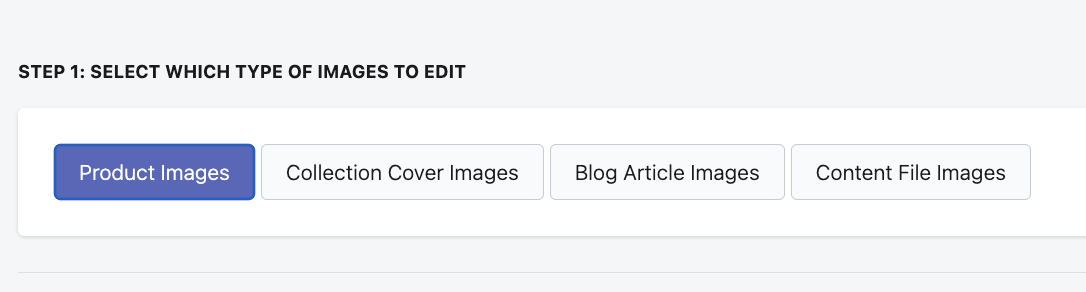
-
Use the filters to find and select the images you want to match and edit.
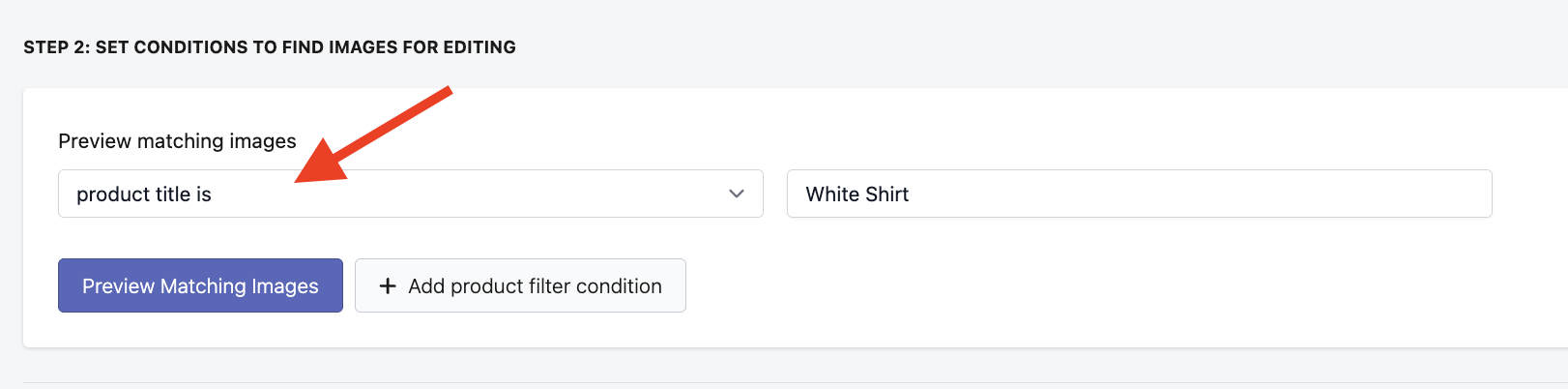
Click the Preview Matching Images button to preview the images you have filtered.
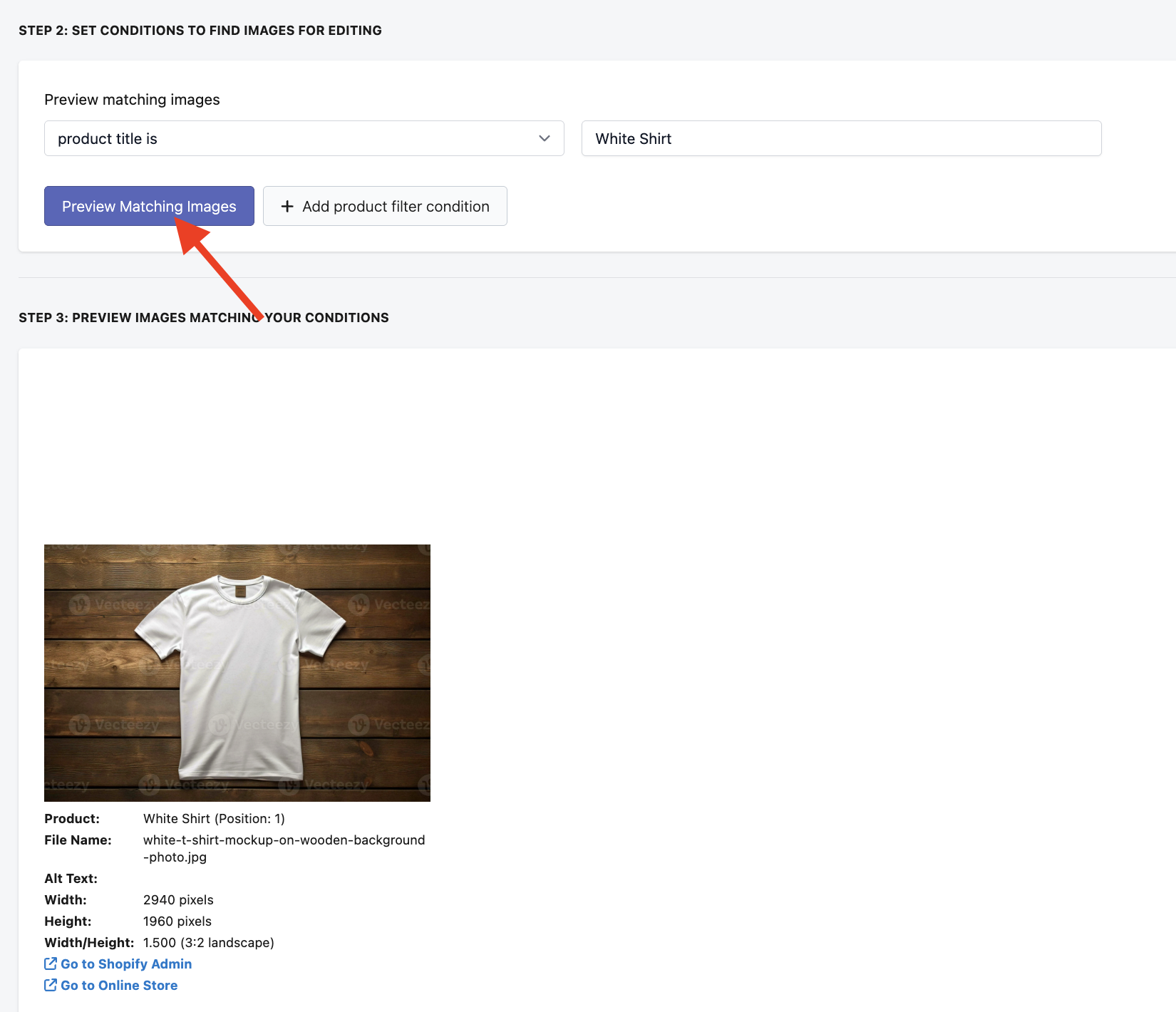
-
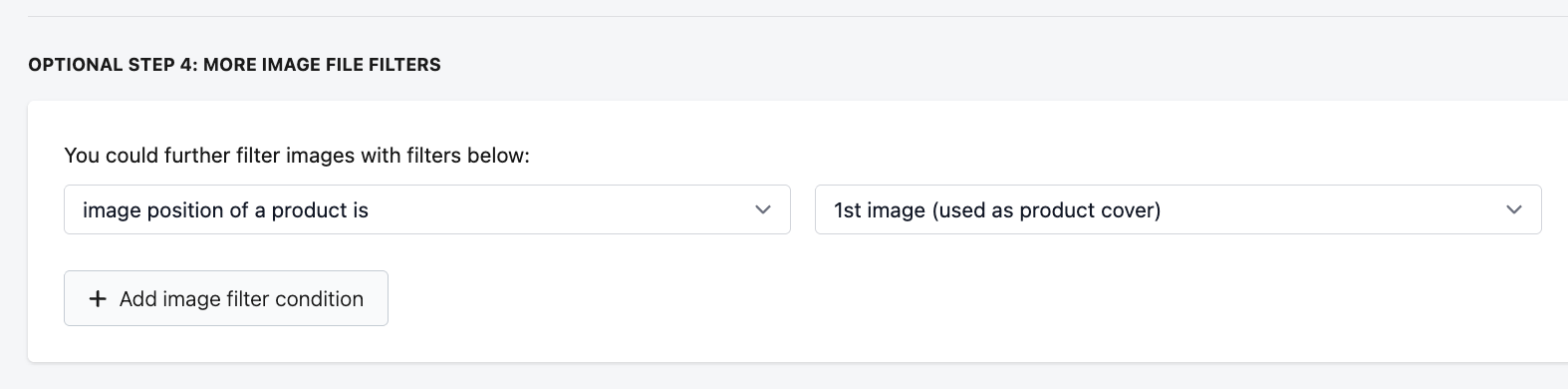
Optional step: You can use additional filters to narrow down your filtered images and target specific images. For example, if you only want to edit the 1st image on each product, you would select "Image position of a product is 1st image (used as product cover)". If you want to edit all images, you can skip this step.
-
Select the option remove background from image.
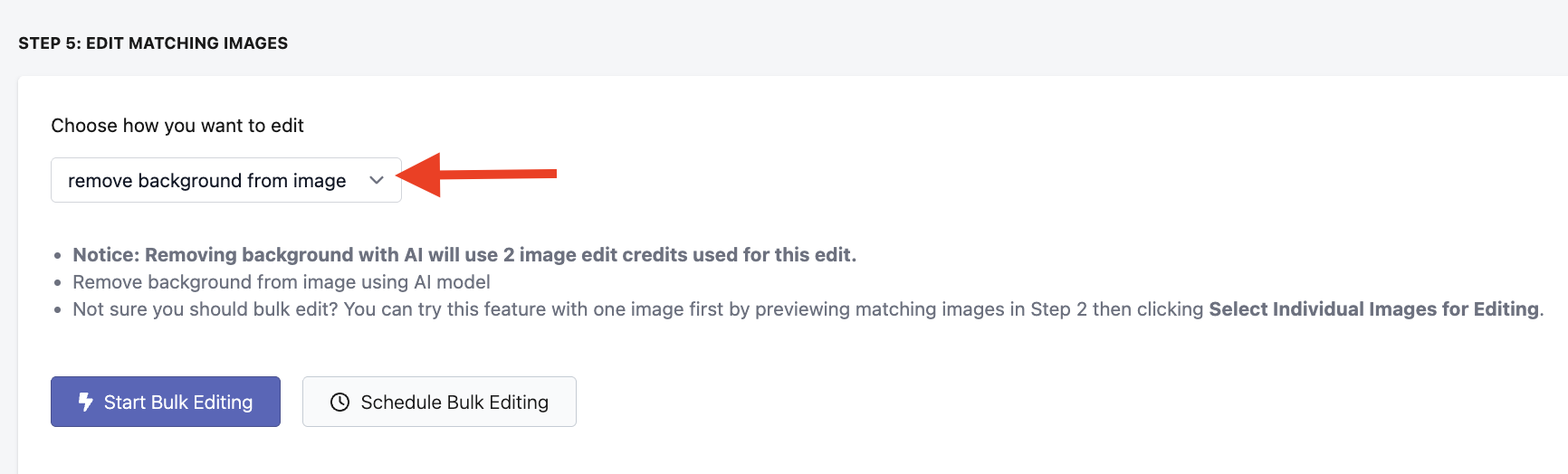
- Click the Start Bulk Editing button to start the task.
That covers the steps for using this feature! If you have any other questions or need a hand with your setup, please don't hesitate to reach out to us at help@hextom.com. We're always happy to help.